
Our Work Experience (WEX) module is designed to help students, employers, parents and schools to meet all the administration requirements. We do not provide the opportunities and it is assumed an informal / verbal agreement has already been reached before starting the administration process.
If your school manages WEX through PeopleHawk then you will see a Work Experience option within the Connect section. If this is missing then please talk to your school co-ordinator for work experience.
Starting a WEX application
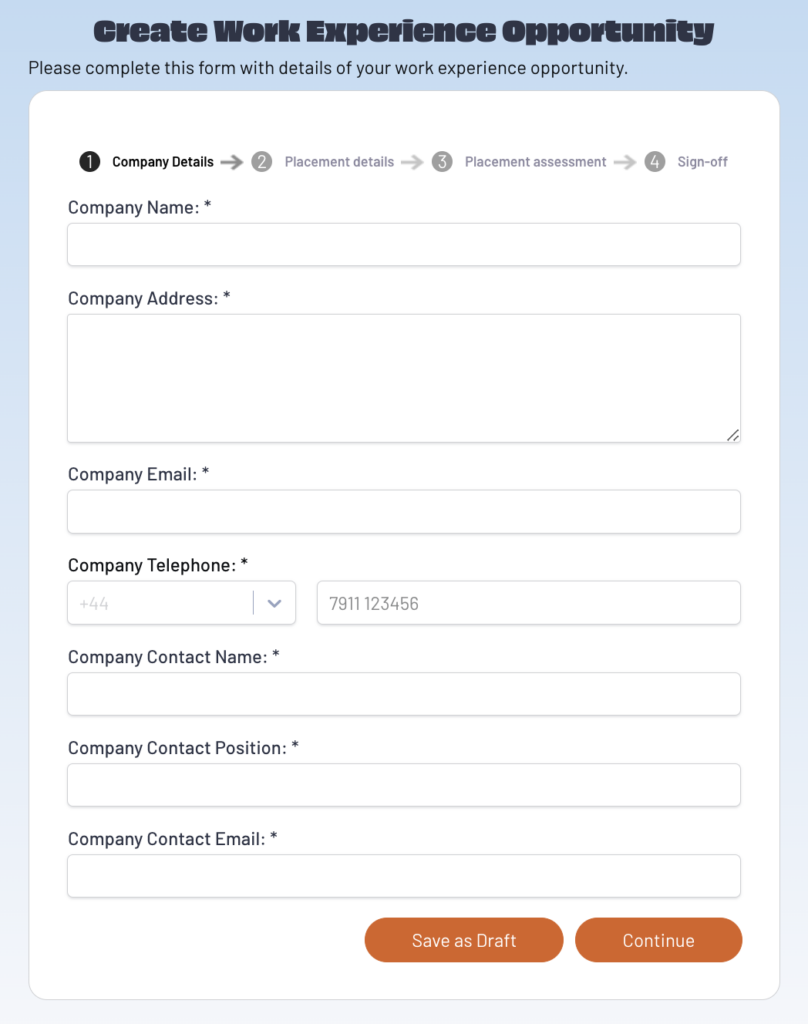
To start a new application enter this module and click on “Add an Opportunity” to display this form.
Company Details
Carefully complete all required fields about the company or organisation you wish to attend for work experience. If you are unsure of any answers you can save the form in draft.
It is particularly important to ensure the “Company Contact Email” is correct as this will be used to notify the company.
Then click Continue to move on.
Placement Details
Now we require some basic information about your work experience.
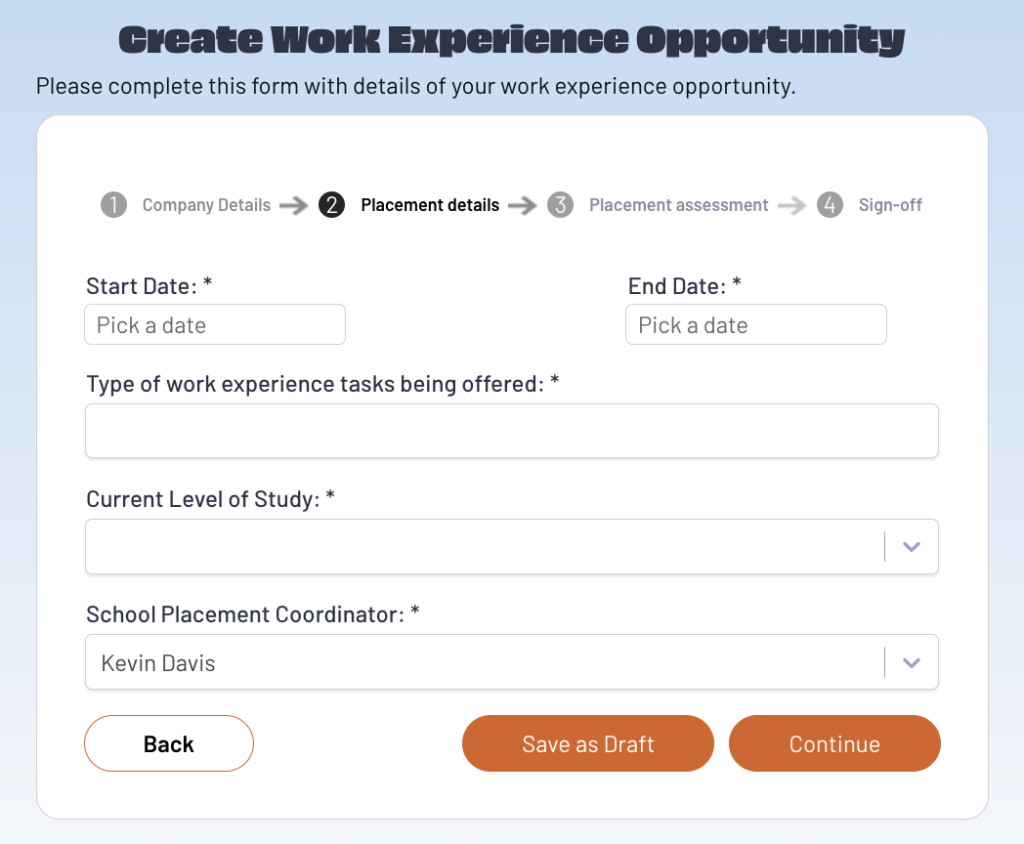
Please ensure the start and end dates are accurate to cover the full period you will be on work experience, a brief description of what you will do and select your current level of study from the dropdown.
Your school placement coordinator should already be selected and should only be changed if advised by your teacher.
Click Continue to move on.
Placement Assessment
Just a few more questions to understand any special needs etc.
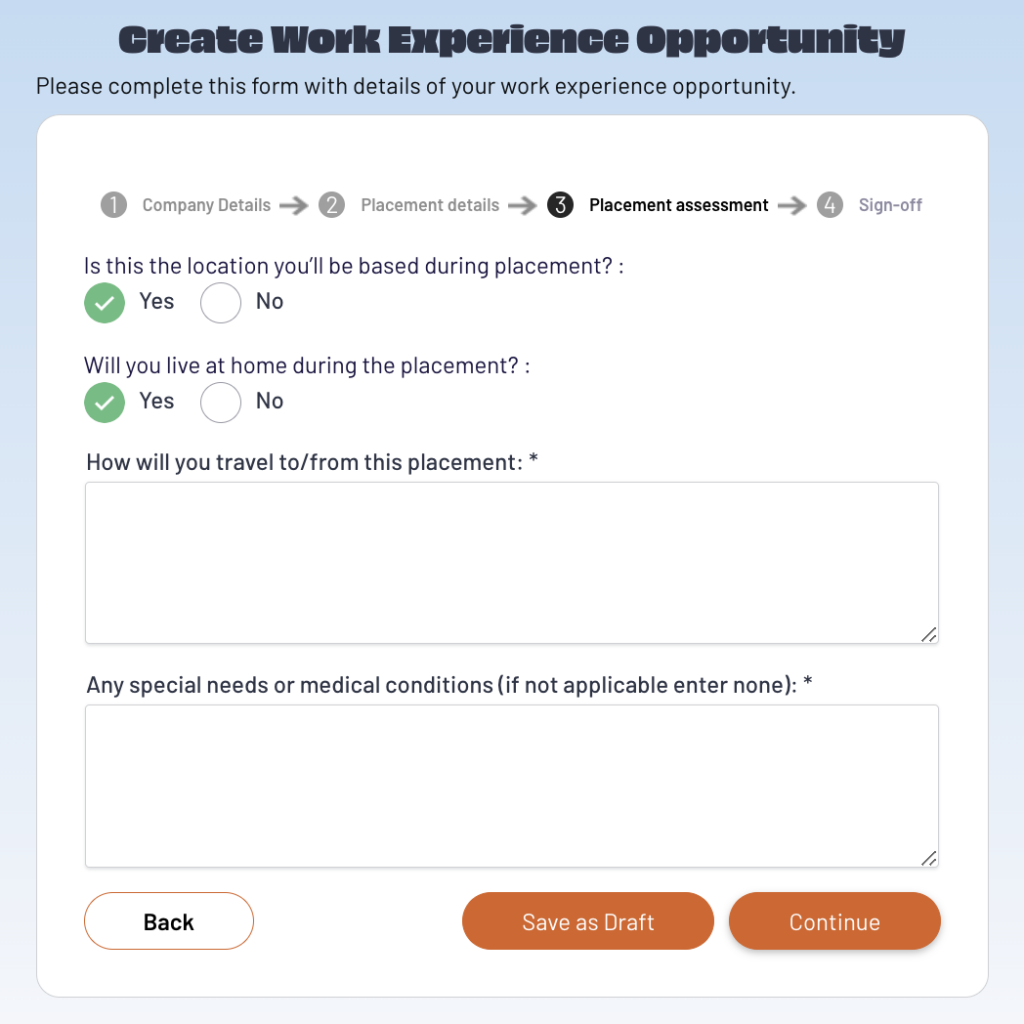
Check your answers to each question and if no special needs then simply enter “none”.
Click Continue to move on.
Sign-off
On the last section the following form will be displayed.
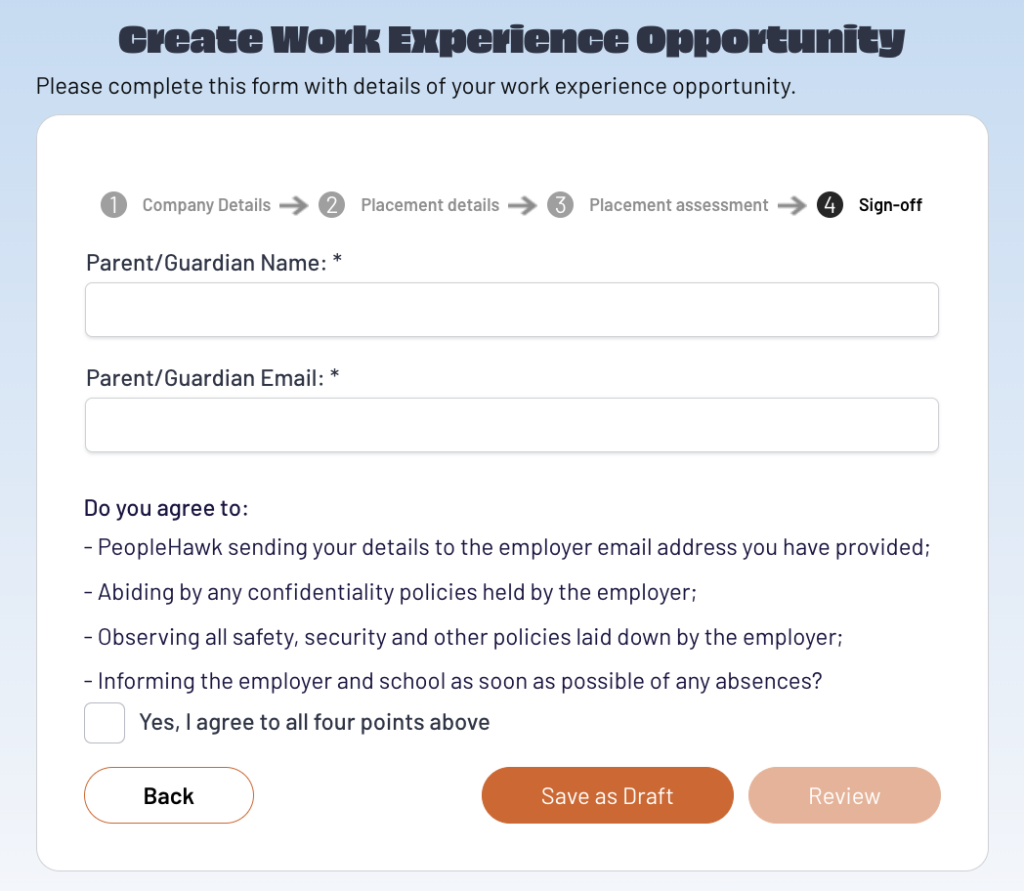
Please ensure your parent/guardian email address is correct as this will be used later to contact them and request their approval.
Now click Review to see a summary of all the information you’ve provided.
Review
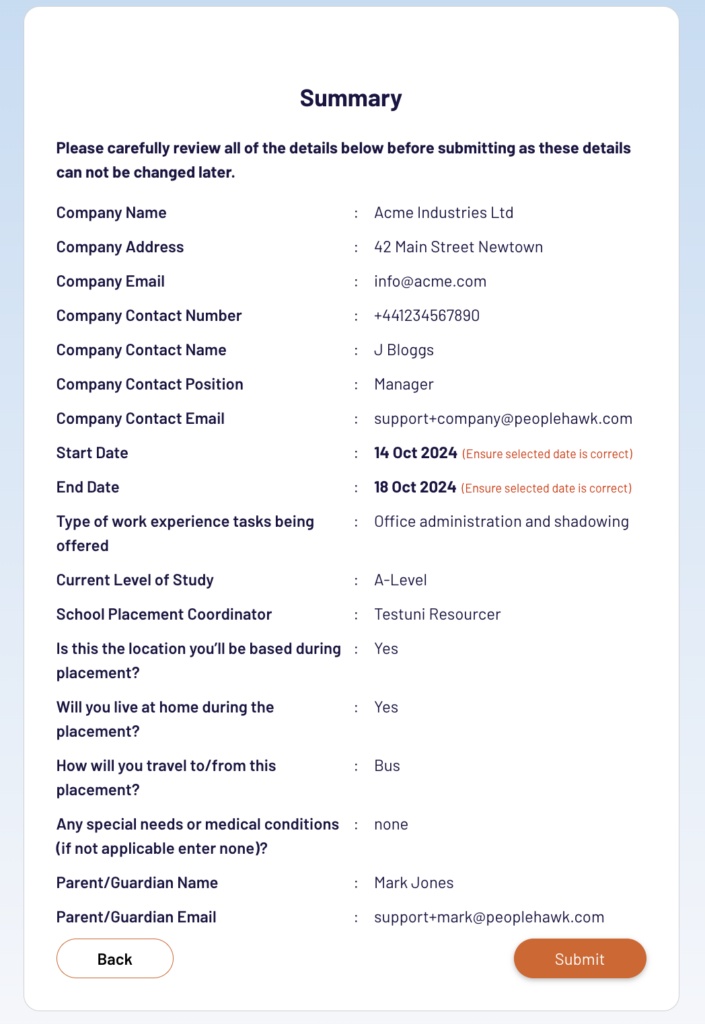
Please carefully review all information entered. You may wish to show this screen to your teacher before final submission.
Ensure the dates, company contact email and parent/guardian email are all accurate and valid.
Once ready click Submit. This will send your request to the company contact for their review and the next stage of the process.
Monitoring your WEX application
It is critical that your WEX application is approved prior to attending work experience. If it is not fully approved by employer, parent/guardian, school then you will be unable to attend.
Therefore it is also your responsibility to ensure your application is progressing and respond to any issues that may arise.
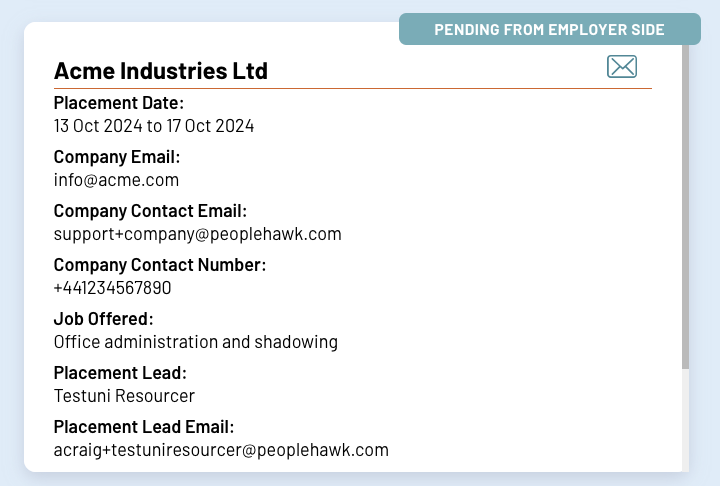
From the WEX module you will now have an application card which shows the details of your application and what stage in the process it is at.
Common Issues
Wrong information provided
If you have made a mistake on your application then you can edit the information by clicking on the card and going through the form again to correct the changes. At the end you must Submit the new version.
If your application has already been started by the employer or is further along in the process the you may not have edit access anymore. In this scenario you will need to speak with your school work placement co-ordinator.
Company or Parent is unable to find WEX email
The email sent to the company or parent/guardian will show as from PeopleHawk and not you or the school. The contents of the email will however refer to you and your school. Ask them to search for emails from PeopleHawk and to also check their junk mail folder.
If they still can not find the email then in your WEX module click the envelope icon on the application card to resend a fresh copy of the email.
Please also verify that the email address for “Company Contact Email” or “Parent/Guardian Email” is correct.
Warning triangle
If your application shows a warning triangle this means there is an error with your application. This is most likely because the email sent has failed to be delivered and the email address does not exist.
You will need to update the email address and resubmit your application otherwise it will not be progressed.