In order to meet all obligatory insurance, health & safety, child protection requirements there is some administration to be completed. The PeopleHawk platform provides an efficient paperless solution to help you with this. The following explains the process for you to complete.
WEX Email
When a work experience application has been finalised by both the employer and the parent/guardian then you will receive an email from PeopleHawk to review the details.
Click the link in the email and log in to the PeopleHawk platform using your account details. Then proceed to the Work Experience dashboard.
Dashboard
The dashboard will show all current and recently completed WEX applications. To see historical applications this can be enabled in the top right by toggling from Current to All.
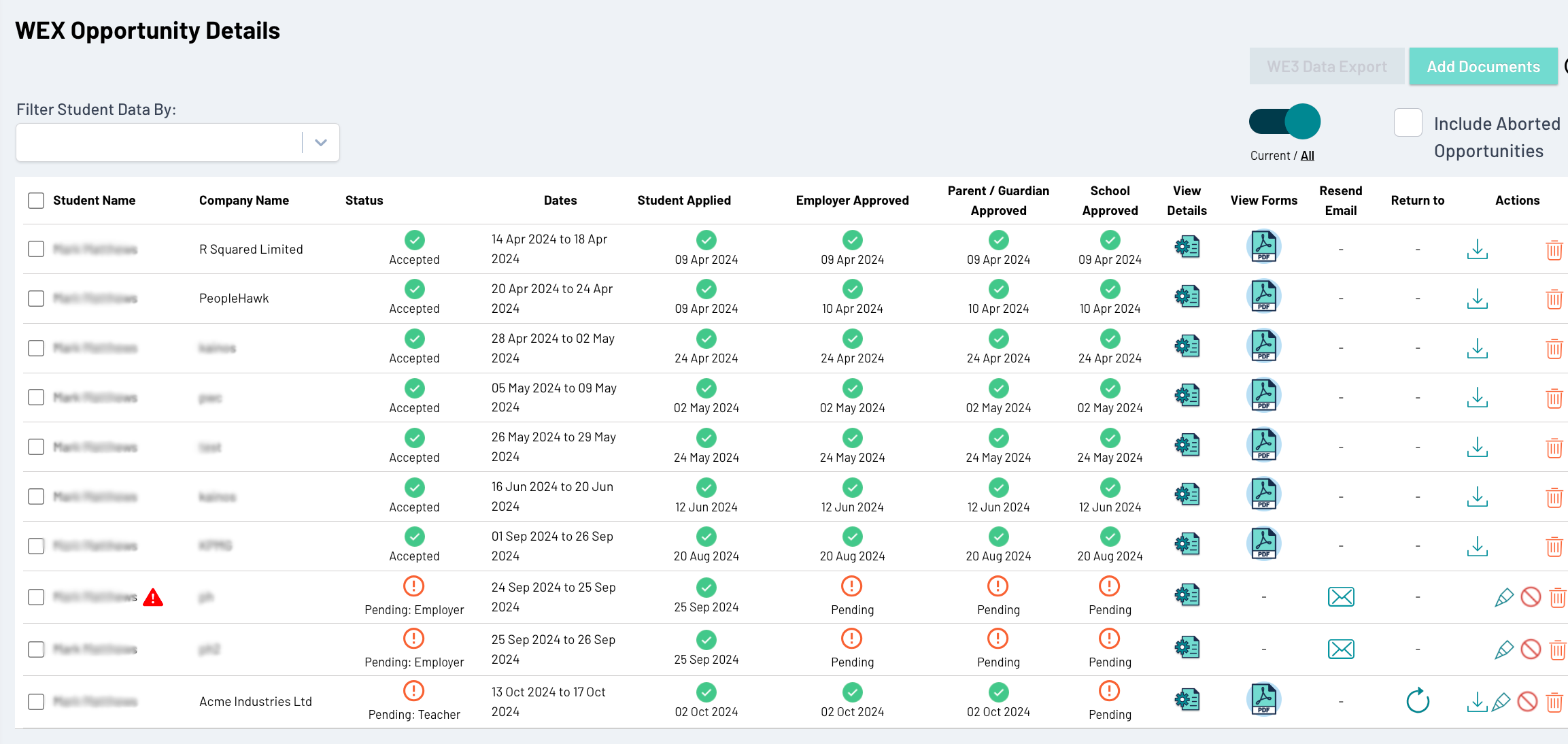
Green ticks indicate a stage has been completed and the date it was completed. If a stage is yet to be completed it will show as “Pending”.
Reviewing an application
Clicking the “View Details” icon will show all of the information provided by the student, employer and parent/guardian. You should carefully review all of this information along with the attached documents.
If you are satisfied and ready to approve then click on “Proceed to forms and sign off”.
You will a series of tabs for the various required forms summarising this information and the last tab is “Sign Off”. Here you need to confirm you have reviewed each form and then click to add your signature and approve.
For signature you may upload a signature image if you have been authorised to do so.
Once the application is approved then all parties will be notified and the placement can take place.
From the dashboard you should also download a zip file containing all related documents for the opportunity to store with your school records.
Common Issues
Mistakes in application by student
Clicking on the pencil icon will allow you to edit an existing application and then resubmit. You can use this to correct dates, email addresses or other information entered by the student. If the application was already approved by an employer then it will need to be re-approved by them to ensure they have seen the latest information.
Further detail required from employer
If the information supplied by an employer is invalid or requires further clarification you can return an application backwards in the process under the “Return to” column along with a message of what additional information you require them to complete e.g. more explanation on work experience tasks.
Resending Emails
If an employer or parent/guardian contacts you and has not received an email you may need to resend the email to them. Check the email address is correct and click the envelope icon in the “Resend Email” column
Email not delivered
If an email has not been delivered a red warning triangle will be displayed beside the student’s name. The student will also have received an email and notification. This means the email address is not valid and probably contains a typo. Please check for the correct address and update the application accordingly then resubmit.
Configuration
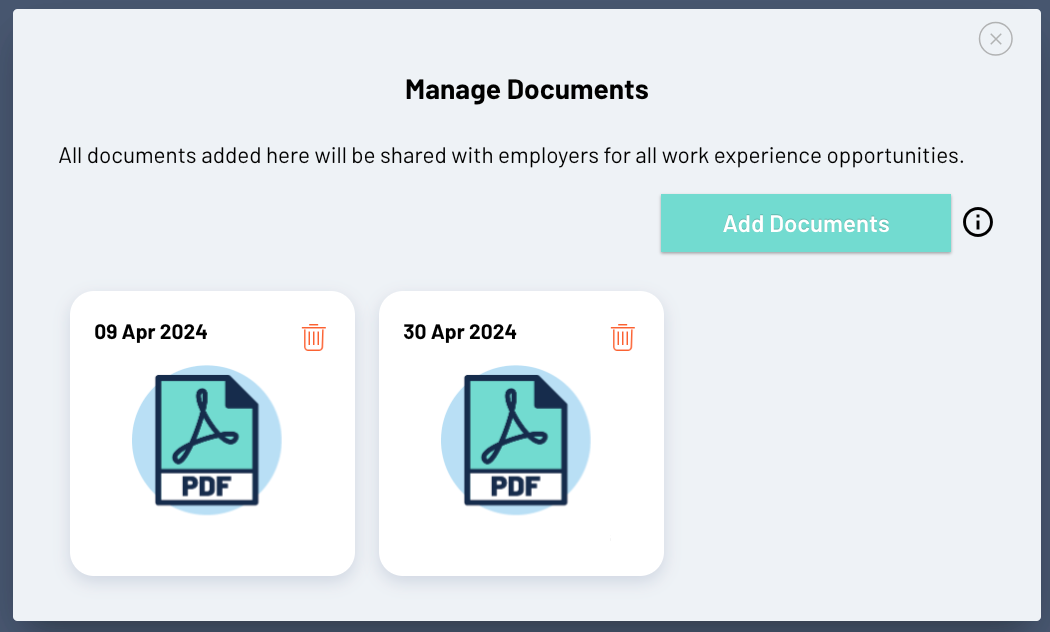
For every application being sent out you can attach one or more PDF documents. Typically this can be a covering letter from the school to the employer, insurance information or risk obligations.
Click on “Add Documents” in the top right to and upload your desired documents.